> For the complete documentation index, see [llms.txt](https://wishlist.nativeappco.com/llms.txt). Markdown versions of documentation pages are available by appending `.md` to page URLs; this page is available as [Markdown](https://wishlist.nativeappco.com/install-and-setup/theme-setup/add-wishlist-button-to-product-page.md).
# Add Wishlist Button to Product Page
Adding a Wishlist Button to your product page is easy. Use App Blocks for a super quick setup, or use our Manual setup for advanced customisation.
### Installation Options
#### **Option 1: Using App Blocks (Recommended for Compatible Themes)**
If your theme supports Shopify's app blocks, this is the most straightforward and recommended method. App blocks allow for easy integration and management of app-related functionalities directly within the theme customizer.
For detailed instructions on adding app blocks to your product page, please refer to our dedicated guide:
[Add App Blocks to Your Theme - Add Button to Product Page](https://wishlist.nativeappco.com/install-and-setup/theme-setup/add-app-blocks-to-your-theme#add-app-block-to-product-template-s)
#### **Option 2: Manual HTML Element Integration**
Consider manual setup for the following scenarios:
* **Adding to older themes that don't support app blocks:** For themes that predate or do not fully support Shopify's app block functionality.
* **You prefer to add the code to your theme yourself:** For developers or users who want direct control over their theme's code.
You can manually add the "Add to Wishlist" button anywhere on your site by inserting the following HTML element directly into your theme's Liquid files.
This method provides full flexibility in terms of button placement.
**HTML:**
{% code overflow="wrap" %}
```html
```
{% endcode %}
**Customizing the Text:**
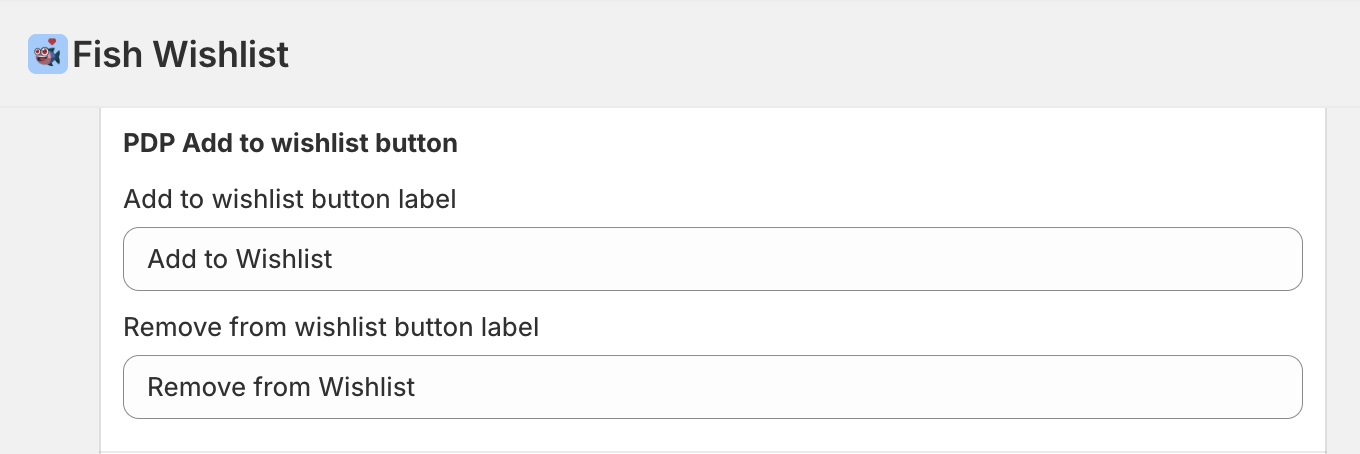
Regardless of whether you are using App Blocks or manual setup, you can modify the text for your wishlist button in [Language Settings](https://admin.shopify.com/store/fish-wishlist/apps/fish-wishlist/app/languages). If you don't want to display any text, you can remove the text from this page.